Tampilkan postingan dengan label user. Tampilkan semua postingan

Hack User Account Control in Vista

| 0 komentar |


Windows Vistas User Account Control (UAC) is the new operating systems most universally reviled feature. Sure, it helps protect you, but it also annoys you to no end.

If UAC drives you around the bend, you can turn it off. There are several ways to do it. One way is to choose Control Panel > User Accounts and Family Safety > User Accounts, then click Turn User Account Control on or off.

Alternately, you can run the System Configuration Utility (a.k.a. msconfig) by typing msconfig at the command line or search box. When the tool runs, click the Tools tab and scroll down until you see Disable UAC. Highlight it and click the Launch button, then reboot. To turn it back on again, follow the same steps and choose Enable UAC.

If youre a fan of the Registry, you can also disable UAC using the Registry Editor. Launch the Registry Editor by typing regedit at the Start Search box or a command prompt and pressing Enter. Go to

HKEY_LOCAL_MACHINESOFTWAREMicrosoftWindowsCurrentVersionPoliciesSystemEnableLUA

and give it a value of 0. You will need to reboot in order for the change to take effect.

UAC is also the culprit for another nagging Windows Vista annoyance. When you run some commands from the command prompt, youre told that you dont have administrative rights to run them, even if youre currently logged in as an administrator.

Thats because UAC requires you to run the command prompt as an administrator -- whats called running an elevated command prompt. Simply being logged in as an administrator isnt good enough; you still have to run an elevated command prompt.

One way to do it is to type cmd into the Search box on the Start menu, right-click the command prompt icon that appears at the top of the Start menu, then select Run as administrator.

But if you dont want to go about doing that each time you run a command prompt, theres a simpler way. You can create a desktop shortcut for an elevated prompt, or pin the elevated prompt to the Start menu.

To create a shortcut on the desktop:

1. Right-click the desktop, and select New > Shortcut.

2. In the text box of the Create Shortcut dialog box that appears, type cmd and then click Next.

3. On the next screen, type a name for the shortcut -- for example, Elevated Command Prompt. Then click Finish.


Creating a shortcut for an elevated command prompt. (Click image to see larger view.)
4. Right-click on the shortcut you just created and select Properties.

5. Select the Shortcut tab and click the Advanced button.

6. Check the box titled Run as administrator. Click OK and then OK again.

Now, when you want to run an elevated command prompt, simply double-click the shortcut.

If youd like the elevated command prompt to appear on the Start menu, drag it from the Desktop to the Start button and place it where you would like it to be.
Read More..

Create A New User Account

| 0 komentar |

Windows XP includes a new simple account management applet called User Accounts. This applet is a new approach to user management that replaces the Windows 2000 style user list with a nice-looking wizard approach. Follow these steps to remove passwords with the new management applet:

1. Launch the new applet by clicking the Start Menu and then selecting Run.

2. Key in nusrmgr.cpl and click the OK button. The applet will now launch.

3. Use your mouse to click the account from which you want to remove the password.

4. Next, click the text that says Remove the password.

5. After clicking the text, you will be taken to a confirmation screen, where you will be required to type in the password of the user. Type in the password and then click the Remove Password button.

Thats it! The password is now removed for the user that you selected. Repeat the previous steps for any other accounts for which you would like to remove the password.

If for any reason you change you mind and want to put a password back on a users account, just go back into the User Accounts applet and click the user you would like to change. Then, instead of showing Remove My Password, the applet will show, Create a password. Click the Create text and enter the new password in the two text boxes and then click the Create Password button.
Read More..

How to Block or Remove Blogspot Follower User

| 0 komentar |
How to Block or Remove Blogger Follower User?


How to Add Friend Blogapot Follower User?


Some Blogspot follower user use Adult and sexy image. If you are having blogger blog, you will have followers widget for every blog by default. In this case any visitor can become your follower. Now if you wanted to moderate it and blog any follower here are some simple steps to do this. Or else if you wish to Add the follower as friend then also check the below 8 steps.

1. Login to blogger.com.

2
. Here, for every blog of you an see followers link if it has minimum one, as you can see in bellow image my blog has 101 Followers

3
. Click on Followers Link for the blog for which you want to block some follower

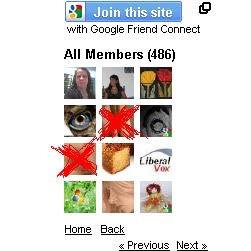
4. It will show list of followers as shown in bellow image.

5
. Now click on the picture of the follower which you wanted to block

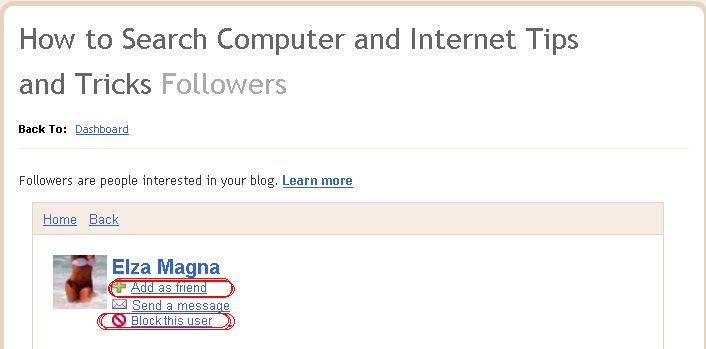
6. This will show updates and links of follower as well as link for blocking the follower.


7. Click on Block This User Link and follow the steps and the follower gets blocked from following your blog.

8
. If you dont want block the follower but add as a friend then click on Add as friend as shown in the above image.

Thank you....
Read More..

10 most useful premium account access for free with user name and password

| 0 komentar |
Up ****Premium Accounts.****{ 10 Websites Premium Accounts }

1.) http://www.divxcrawler.com/ {download movies fastly}

Username : divx273
Password : 8342729


2.) http://www.butterflydownloadnetwork.com/ {movies, music, Pc Games, Tv shows}

Username : cinemanetwork20
Password : butterfly20


3.) http://www.downloadprofessional.com/ {movies,Pc softwares, Pc Games, Tv shows}

Username : lo886Ees
Password : zAgt88er


4.) http://www.sharingzone.net/ {movies, Pc softwares, Pc Games}

Username : LODMQYHX
Password : 375021402
Receipt : 4T5W89RD


5.) http://www.unlimitedgamedownloads.com/ {movies, Pc Games, psp softwares}

Username : ga20me
Password : ke01feb


6.) http://www.watchdirect.tv/ {movies, music, Pc Games, online Tv}

Username : cinemanetwork20
Password : butterfly20


7.) http://www.fullreleasez.com/ {Greatly Every thing}

Username : Af872HskL
Password : XjsdH28N


8.) http://www.fulldownloads.us/ {Greatly Every thing}

Username : Af872HskL
Password : XjsdH28N


9.) http://www.pirateaccess.com/ {Every thing}

Username : yourfrienddalat@gmail.com
Password : CHh5LKPI

Username : xxx_heel_xxx@yahoo.com
Password : MJY0BUY

Username : i_l0ve_u_786@yahoo.com
Password : rYvLgPrt

Username : mubashar_siddique@yahoo.com
Password : F9Gzgwb5


10.) http://www.warezquality.com/ {Every thing}

Username : ageg2020
Password : z8fsDfg3
Read More..