Tampilkan postingan dengan label pc. Tampilkan semua postingan

How To Increase PC Speed

| 0 komentar |

There are many ways you can increase the performance and make your computer runs faster. I used to come across a website which has around 100 ways to make a computer runs faster. Here’re 2 of the best programs I’ve found that is able to increase the speed of your website:


  1. PC Speed Doctor
  2. Overclock Your CPU


Instead of going through each of them, I’m going to share only the best ways to speed up computer. These methods are very easy to do and you can see a big difference after you have applied them.

Most of these methods can be categorized into: Looking Ugly, Cleaning Up and Overclocking. Looking ugly are techniques that reduces the visual effect of your windows. Instead of looking nice and cool, these techniques remove these effects and make your computer runs faster. Cleaning up is about removing files and programs that are slowing down your pc. Last but not least, overclocking is like hacking your own hardware such as processor and graphic cards to make them run faster.

You can start with the following tips!

Read More..

How To Increase Speed Of PC In 5 Minutes

| 0 komentar |

If you want your PC to work faster right now, here’re 5 simple steps you can do to increase the performance of your PC. By applying these steps, your computer can start running faster right now:

Step 1: Remove visual effects

This is a step where you could remove all the fancy effects that make your windows look nice. These effects include fading, shadows and other animations. This step is similar to Windows XP, Vista and 7. The steps are:

Go to your Desktop
Right click "My Computer"
Left click "Properties"
Click on the "Advanced" tab
Under "Performance", click on "Settings"
Under the "Visual Effects" tab, click on "Adjust for best performance"
Click "Apply" and you’re done.


Now, you lose the fancy visual effects but your computer is able to run much faster. By removing all these effects, you will see a significant increase in speed.

Step 2: Use disk cleaner

Disk Cleaner is a free tool provided with Microsoft Windows. It is able to help you clear up to 2GB to 3 GB on your hard disk and speed it up.

"What does deleting temporary files have to do with speed up your computer?" you may ask.

Imagine you have a very messy room full of stuffs, do you think finding something that you want takes time. That is the same to every computer as well. When your computer helps you to store temporary files, they are basically stored in an unorganized way and mixed with important stuffs.

By throwing 10% of the garbage in your messy room, you can find the things you want much faster. That is the same for your computer as well. These are the steps to clean up your PC:

Click on the "Start Menu"
Select "All Programs"
Select "Accessories"
Select "System Tools"
Click on "Disk Cleanup"
Choose your drive that you want to clean (Hard Disk, normally C Drive)

Once you click on "Disk cleanup", the program will start calculating how much space you could free from cleaning some old stuffs. After few minutes of calculating, you will be able to see a list of stuffs you can delete. Check those that are unimportant and delete.

Step 3: Change display settings 

This is very similar to visual effects. Instead of using fancy and colorful backgrounds that waste lots of time and PC power to load, remove them to the basic will speed up your computer. The steps are:

Right click your "Desktop"
Left click "Properties"
Under "Themes" tab, click on the drop down menu and choose "Windows Classic"
Under "Desktop" tab, choose "None" for background.
Under "Appearance" tab, click on the drop down menu below "Windows and buttons".  Choose Windows Classic Style.
Under "Appearance" tab again, click on "Effects…" button, try to uncheck all of them and click "Ok".
Under "Settings" tab, click on the drop down menu below "Color Quality" and choose "16 Bit".
Finally, click on "Apply" and you’re done.

Step 4: Clear hidden Windows errors 

Around 90% of SLOW computers are cause by hidden Windows error. That’s one of the main reasons why your computer starts to slow down after using it for months. Unfortunately, cleaning this error manually is simply too technical. To clean these errors effectively, you can use the help with a program automatically called PC Speed Doctor.

Step 5: Overclocking

Overclocking is a nasty way of improving the performance of your hardware. I don’t recommend you this step if you are using a new PC. This technique is able to boost the performance of your processor and force your computer to run faster. On the other hand, it will generate more heat. Overclocking is quite technical as well. I highly recommend you to learn from an ebook called Overclock Your CPU. The author is able to increase the performance of a processor from 1.9GHz to 3.5Ghz and has helped many people to do so.

Read More..

PC PROBLEMS THEIR SOLUTIONS

| 0 komentar |

common pc problems and their solutions.

1.       My computer’s speed is very slow.

Ans.   There are many reasons for slow speed of computer. At first Increase your RAM (random access memory). In P-4 system 256Mb ram is recommended. Your can increase up to 512 or 1gb for best result.  2nd: Check your hard drive for physical or logical errors or bad sectors. Often Bad sector reduces the speed of computer. 3rd: Check for virus in your computer and also remove unwanted and unnecessary files from your system. These tips will improve the speed of your computer.


2.       During installation of windows xp, setup shows a error “setup can’t copy the 
          files….) when reaches at ‘Kernal Debuger).

Ans. When you try to install XP windows and during setup at “Kernal Debuger” point you see a error, it mean that there is some problem in your system’s Random Access Memory (RAM). Replace your system’s ram and run setup again.


3.       When I start my pc, a message appears “operating system not found”

Ans.   1st. start your pc and by pressing Dell or F2 enter into system setup and check your hard drive detection. In advance system option check for Primary or secondary drive. If your data cable and power supply connector is connected accurately with hard, then here you will see the capacity of hard drive. In this case you have lost your operating system and so install again windows. 2nd: If you didn’t find any hard drive detection in setup, it mean that cables are not connected with hard drive. Also there could be any physical problem in your hard drive.


4.       There is not display on monitor. Beep Found.

Ans.   When you start your pc, you just hear a beep and there is no display at all. If you hear beep 2 times continuously, it mean there is some problem in your Ram and if you hear beep once after a little gape, it means your display adapter is not working. In case of display card (VGA) you can also check the connectivity of card on your mother board if you are using external card. In case of built-in, use external VGA card.


5.       When I play any 3d game, my system goes slow down.

Ans.   When a system become slow while playing a game, it means you are using low speed graphic card. Many cards are available in market. Mostly 128MB or 256MB card gives better performance for games and graphics.


6.       Video movie doesn’t play in normal speed. 

Ans.   It is also because of low speed graphic card. Replace with high speed graphic card, as a result video result will be better.


7.       When I play a song or video movie, system stops

Ans.    This problem is often caused by sound hardware. When we play a movie then graphics and sound both work at same time. So if any hardware is not functioning well then your system will become hang.


8.       How can I improve Windows XP speed?

Ans.   There are some tips for improving XP speed. Clean your desktop and delete all unnecessary & unwanted file from your desktop. Run disk clean up to remove unwanted files from your system, Run disk Defragmenter to increase more space for windows to work fast. click start, run, type. "prefetch" and enter. A new window will appear, remove all files shown there. Again click start, run, type "%temp%" and press enter. remove all files shown in the new window. By applying these setting you can increase speed of your computer.  


Read More..

driver checker pc drivers software for free

| 0 komentar |
Driver checker: There is a high level software which allows to solve the problems regarding the lack at the part of drivers and drivers in a computers way of using driver checker can be detected easily and the most intuitive list of drivers who lack even the list of drivers compatible with the machine in question.
Like this, and thanks to driver checker can completely forget the malfunctions of the system which are mainly related to drivers, especially when there is a loss of all pilot following a format or uninstall...
                                
                                            
Download driver checker for free
-->
Read More..

How to Watch Satellite TV on PC

| 0 komentar |


In today’s digital world, technology has continued to grow and advance. This is what adds a new dimension to the world of entertainment. Technology has its major impact on the world of entertainment. Watch TV online right on your personal computer or laptop which has made it quite easier over the recent years. Free TV online is a reality which has brought a new wave to the world of entertainment.


This is recognized as a PC or computer TV card, in short PCTV card. Here are two types obtainable in the market for sale. One requires you to really install it within your PC while the extra can be just plugged into the USB port of the PC. With most people acquiring the high speed internet connection over broadband, individuals have been given the option to entertain themselves while in workstations or in leisure. Just imagine, you dont need any wiring, no hardware installation to get started with free TV channels online


The PCTV card uses your PC infrastructure to decode the satellite TV signals consequently that you can create to watch satellite TV on computer. With the help of the easy and simple downloading instructions, you can easily start with the free entertainment. The satellite TV signals are basically termed as Free-To-Air or FTA TV signals. Satellite TV stations show their TV programs via FTA which are unencrypted for public viewing, if you have broadband connection, you just need to follow the easy to download instructions which will just takes minutes to get you started with the satellite TV over PC.


Though, in order to watch satellite TV on computer, please take note of the PC hardware and OS necessities and compatibility of these cards with your PC. After the installation of the PCTV software in your own computer, you will get one well-organized and a user-friendly interface on the window, including various small menus as well as control buttons all around it.


The satellite television software is a lot compatible to all the Windows versions, UNIX and LINUX to list a few, it is favored that your PC is using a least Pentium II 333 MHz processor and your OS should perfectly be either Windows ME, 98, 2000 or XP. Extra peripherals that can enhance your viewing knowledge are a superior sound card, video graphics card, speakers and PC theatre scheme.


Cable TV tends to be nicely-received in built-up areas considering that it is not affected by terrains and weather. Nevertheless, in places wherever cable know-how has not arrived at, this sort of as rural areas or some suburban districts, satellite TV is their selection. In actuality, you can set up a satellite dish program to observe satellite Television on your Television from any element of the earth so it has a around the world appeal. Exactly where you can have World Wide Web entry, you can watch satellite TV on PC easily.


No monthly bills or membership fee is charged and you can work from any part of the world, while on a move, or while relaxing as long as you have the Internet access.


Visit More Info..... http://www.satellitedirect.com

Read More..

Move Xp Hard Drive to New PC

| 0 komentar |

Really easy. But this only works if the original motherboard and harddrive still work. so put it back together. for newbies.

go to control panel > double-click the system icon > hardware tab and click device manager button. find the IDE ATA/ATAPI CONTROLLERS and expand the tab. not the primary or secondary controller, but right-click the first controller. choose update driver. choose the option to install from a list or specific location. click next. now choose the (dont search. I will choose the driver to install) option. click next. now highlight the Standard Dual Channel Pci Ide Controller. click next. the Standard controller will install. now reboot. log in. the standard controller is completely installed. you can now shutdown the computer, remove your harddrive, and it will boot with the new motherboard. ive done this 24 times on 12 different computers. it works.
Read More..

Common Errors in PC There Solution

| 0 komentar |


1. MONITOR LED IS BLINKING
Check all the connections like Monitor Cable, Data cables,RAM, Display Card , CPU connections.

2. CONTINUOS THREE BEEPS
Problem in RAM Connection.

3. THREE BEEPS ( 1 Long 2 Short)
Problem in Display Card Connection

4. THREE LONG BEEPS PERIOD WISE
Problem in BIOS or RAM (Basic Input Output System)

5. CONTINUOS NON-STOP BEEPING
Key Board Problem (I.e.; Some Key is pressed for Longer time)

6. FDD LED IS GLOWING CONTINUOSLY
Data cable to be connected properly (twisted cable).

7. NO DISPLAY ON THE SCREEN AT ALL
Hard Disk cable connected wrongly. Connect rightly seeing the Red mark (Faces power supply) and then Restart.

8. POWER LED IS OFF
a. Check main power cord
b. Check S.M.P.S.
c. Check Mother Board connection

9. SHOWING CMOS ERROR
Replace 3 Volt battery of Mother Board . Set Original Settings Manually.(Refer CMOS Setup chart)
Enter your search termsSubmit search form

10. SHOWING FDD ERROR OR FLOPPY DRIVE IS NOT WORKING PROPERLY
Check Power cord of FDD , Data Cables , set CMOS & Finally the Check drive.

11. SHOWING HDD ERROR OR HARD DISK FAILURE
a. Check Power Cord
b. Check connection of HDD
c. Check Data cable
d. Check Hard Disk parameters in CMOS or Auto detecting Setting Partitions by Fdisk Command, then format it to set track 0.

12. MOTHER BOARD HANGS DUE TO UNSTABILIZED POWER SUPPLY
a. Check S.M.P.S
b. RAM not functioning properly.
c. Software problem (due to using pirated software)
d. CPU fan not functioning properly.

13. DANCING SCREEN
a. Check Display card connection
b. Virus Problem
c. Video Memory Problem

14. SHAKING SCREEN
a. Earthing problem
b. Magnetic waves comes around.

15. CPU CABINET SHOCK
a. Check Earthing
b. Check main power cord.

16. NON-SYSTEM DISK ERROR
a. Floppy Drive having different disk (Non-Bootable Disk) OR CMOS Parameters for Hard Disk may not be set properly.
b. Hard Disk Partitions may not be created.
c. Hard Disk may not be formatted.

7. MISSING OPERATING SYSTEM
The System files missing namely Ie; command.com} - User File IO.SYS & MS_DOS.SYS } - Hidden Files. These above three files required for Start up of the system that can be transferred by using SYS C: Command OR While the time of formatting by using Format c:/u/s

18. MISSING COMMAND INTERPRETOR
May the file Command.com is corrupted OR Infected by Virus OR Some one has Erased it.

19. SHOWING I/O ERROR
a. The type of Hard Disk in CMOS may not be set properly.
b. Operating system used for formatting is not valid

20. SHOWING DIVIDE OVER- FLOW MESSAGE
a. May some Directories or Files crash with other files.
b. Use CHKDSK/F or SCANDISK Command to correct it.

21. HARD DISK MAKING NOISE WHILE PROCESSING
a. Unstabilized power supply.
b. Check for Loose Contact.
c. Do not use Y Connectors for Hard Disk.
d. It may create Bad Sector OR Weak Hard Disk.

22. HARD DISK HANGS WHILE PROCESSING
Check for Bad Sector by using CHKDSK or SCANDISK Command. If found format the Hard Disk and set Partition before that area.(This is the only procedure to use Hard Disk with Bad Sector) OR (To avoid Bad Sectors use Standard Power Supply)

23. HARD DISK NOT DETECTED
a. Check Power Connector
b. Check Data Cables
c. Check Jumpers

24. PARTITION NOT SHOWN
Operating System where the Hard Disk formatted is not supported with present Mother Board. For Eg: Hard Disk formatted with Pentium System will hide their partitions for 486 System.

25. MMX/DLL FILE MISSING
May the above files may be corrupted due to power failure or Virus. Make available above files from other Computer. OR Reinstall Windows 98 Operating System. (This procedure will not make any effect on existing Data).

26. WINDOWS REGISTRY ERROR
This will happen due to sudden ON/OFF of the system. Final solution is to Reinstall Operating System.

27. DISPLAY COLOUR DOES NOT MATCH
a. Configure Display Card properly with their CD.
b. The Standard setting for Windows is set it to 800x600 for better performance.

28. UNKNOWN DEVICE FOUND
May the Driver utility is not provided with operating system . Insert Driver CD and install software for the above Device. (Every Device requires driver utility to set active
Read More..

funny pc

| 0 komentar |


IF making things smaller is the future then this is the future.

Read More..

PC Facts

| 0 komentar |

Well i was just thinking that a lot of odd stuff happens on the computers you know.  its not dangerous but still is fun to do...


Try these for some fun:-)


  • 1:- An Indian discovered that nobody can create a FOLDER anywhere on the computer which can be named as "CON". This is something pretty cool...and unbelievable..At Microsoft the whole Team, couldnt answer why this happened!


  • 2:- for those of you using Windows, do the following:


    • Open an empty notepad file
    • Type "Bush hid the facts" (without the quotes)
    • Save it as whatever you want.
    • Close it, and re-open it.
    • Is it just a really weird bug? :-??
Read More..

How to make your PC speak what you type

| 0 komentar |


 This is an amazing trick to amaze your friends.By using this trick you can make your computer to speak whatever you type.This trick is working on all microsoft operating system and does not require any programming skills.You have to follow just simple steps and your own Text to Voice software will be ready.If you show this software to any of your friends he will be certainly impressed with you .
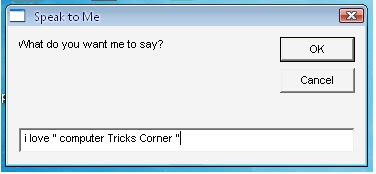
Ok,the trick is fairly simple and requires only 3 simple steps from your side.Let’s Begin the tutorial with screenshots to Make Your Computer Speak Whatever You Type
1.Open Notepad and copy and paste the following code into it

Dim message, sapi
message=InputBox("What do you want me to say?","Speak to Me")
Set sapi=CreateObject("sapi.spvoice")
sapi.Speak message

2.Now save the notepad file with the name speak.vbs at your desktop.
3.Now double click on speak.vbs type in the box whatever you want your computer to speak for you.
Its a really funny trick to impress everybody with your computer skills

Read More..